
PDF Generation In .NET
 Photo from Unsplash
Originally Posted On: https://medium.com/@se.ahmedanwar/pdf-generation-in-net-794a13b121f4
Pdf generation in .NET with DinkToPdf/SelectPdf + Azure Deployment and issues related to fonts loading in DinkToPdf
Recently, I have worked on a project where an endpoint will receive some data in POST request and a single page pdf file will be generated accordingly.
But the issue was that there were some custom fonts and data should be printed with these custom fonts on the output pdf. Now how to solve it?
Now, after a thorough search on the internet, I found two libraries in .NET that allow me to easily(also cheaply) do it.
1. DinkToPdf — No limit on number of pages and totally free.
2. SelectPdf — There is a community edition that allows the generation of upto 5 pages. Additionally, SelectPdf has some deployment restrictions too. You can deploy it to Azure App Service but the plan should be basic.
A detailed guide is available at their site: https://selectpdf.com/html-to-pdf/docs/html/Deployment-Microsoft-Azure.htm
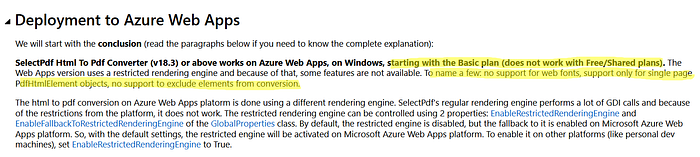
SelectPdf can load fonts from a url too e.g. You can use import url(link) in .css file or in style tag and it will load the fonts without any issue.
Now, DinkToPdf can load fonts(can’t load font if you have used a import url in .css file or in style tag) and you have to download the fonts files from the Google font website(or from other) and reference them in the src field.
For example:
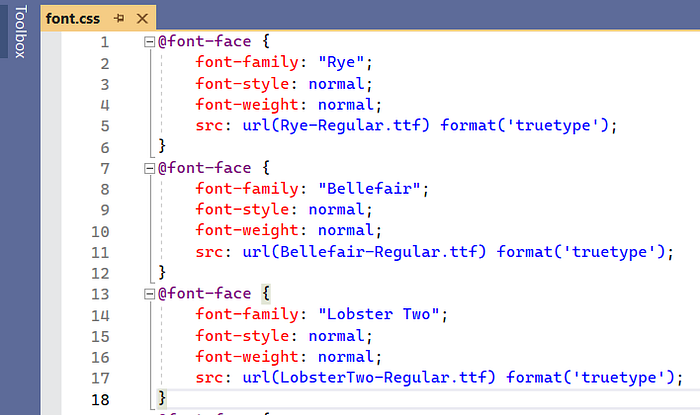
As I have the .ttf fonts file (downloaded from the google fonts website) and I have used the exact font name in font-family field and since the .ttf files are in the same folder as the font.css flle so in src field, I have just specified the name of .ttf file.
In a template generator(which is a static class), I referenced the font.css file like this:
rootPath will come from _webHostEnvironment.WebRootPath:
string cssPath = @"file:///" + rootPath + @"\font.css";Now on Azure App Service, the DinkToPdf will not be able to load fonts(I have tried almost all the solution available on the internet but nothing worked for me).
Since DinkToPdf has no page limitations and can be used in scenarios where there are more than 5pages need to be printed.
The only solution remaining is to use Virtual Machines and deploy your app there and use it as much as you can.
I personally created a Azure VM and hosted the app there and SelectPdf and DinkToPdf worked smoothly.
One thing that I have noted:
We have to load a .dll file to make DinkToPdf work smoothly and for it we make some changes in Program.cs(.NET 6).
I created two endpoints(one use SelectPdf and other one use DinkToPdf) in order to check which endpoint results are more better and SelectPdf endpoint generated Pdf lost some formatting, but DinkToPdf endpoint gives the correct pdf output.
When I commented the line that loads the .dll file(in Program.css), the SelectPdf endpoint generates the correct formatted pdf. Since the requirement was for one page so we just go for the SelectPdf.(it was client choice too)
Solving Font-Loading Issues on Azure with IronPDF: A Modern Alternative to DinkToPdf and SelectPdf
Now that we’ve examined the challenges with using DinkToPdf and SelectPdf when deploying HTML-to-PDF generation to Azure App Services, particularly around custom font rendering. While both libraries offer solid local results, things often break in cloud environments, especially with CSS @import fonts or missing DLL configurations.
Fortunately, there’s a modern, fully-supported alternative: IronPDF.
Why IronPDF for Azure?
Unlike DinkToPdf or SelectPdf, IronPdf is built from the ground up to work reliably in Azure App Services, Azure Functions, and Virtual Machines, without the need for external tools like the WkHtmlToPdf library, DLL hacks, or resource-intensive browser installs.
Key Advantages:
 Built-in Chromium rendering (no separate dependencies or DLL loading)
- Full support for @import Google fonts and remote CSS files
- Works out-of-the-box on Azure App Services, even on Free or Basic plans
- Native .NET 8 support and long-term support plans
- Commercial licensing with a generous free trial
Setting Up IronPDF in a .NET Web API
Let’s walk through how to replicate the single-page PDF generation endpoint, using IronPDF with font loading that works both locally and in Azure.
Step 1: Install IronPDF via NuGet
Install-Package IronPdfStep 2: Sample HTML Templates Using Google Fonts
Create an HTML template (e.g., Templates/Invoice.html) using the @import method for Google Fonts:
html><html><head> <style> @import url('https://fonts.googleapis.com/css2?family=Roboto:wght@400;700&display=swap');body { font-family: 'Roboto', sans-serif; margin: 40px; } h1 { color: #1E88E5; } style>head><body> <h1>Invoice Summaryh1> <p>This is a sample PDF using custom fonts loaded via @import (Google Fonts).p>body>html>With IronPDF, this will work perfectly, even when deployed to Azure.
Step 3: Create a PDF Service with IronPDF
using IronPdf;public class IronPdfService{ private readonly ChromePdfRenderer _renderer; public IronPdfService() { _renderer = new ChromePdfRenderer(); } public byte[] GeneratePdfFromHtml(string htmlContent) { var pdfDoc = _renderer.RenderHtmlAsPdf(htmlContent); return pdfDoc.BinaryData; }}Step 4: Add Controller Endpoint
[ApiController][Route("api/[controller]")]public class PdfController : ControllerBase{ private readonly IWebHostEnvironment _env; private readonly IronPdfService _pdfService; public PdfController(IWebHostEnvironment env, IronPdfService pdfService) { _env = env; _pdfService = pdfService; } [HttpPost("generate")] public IActionResult GeneratePdf() { var htmlPath = Path.Combine(_env.WebRootPath, "Templates", "Invoice.html"); var htmlContent = System.IO.File.ReadAllText(htmlPath); var pdfBytes = _pdfService.GeneratePdfFromHtml(htmlContent); return File(pdfBytes, "application/pdf", "invoice.pdf"); }}Step 5: Deploying to Azure App Service
No special configuration is needed. Just publish from Visual Studio or use GitHub Actions/Azure DevOps.
- No DLL loading or platform-specific hacks
- Works with remote fonts
- No Webkit dependencies
IronPDF includes all rendering logic inside the package using bundled Chromium engine, making it ideal for Azure environments where security and portability matter.
PDF Output

Final Tips
- This will work on Azure App Service, Azure VM, and local environments without any special configuration.
- IronPDF does not require you to manually bundle fonts, it handles @import or linked CSS just like a headless Chromium browser.
IronPDF works seamlessly on Azure App Service, Azure VMs, and local environments without any special configuration. It automatically handles @import rules and linked CSS just like a headless Chromium browser, so you don’t need to manually bundle fonts.
Tutorials to set up the libs:
DinkToPdf: https://code-maze.com/create-pdf-dotnetcore/
SelectPdf: https://selectpdf.com/html-to-pdf/docs/html/ConvertHtmlCodeToPdf.htm
In the next article, I will talk about how I set up the Azure VM and deploy the app from the Visual Studio 2022
Information contained on this page is provided by an independent third-party content provider. XPRMedia and this Site make no warranties or representations in connection therewith. If you are affiliated with this page and would like it removed please contact [email protected]
